
A useful starting point
Prepare a suggested reply for supported unanswered conversations using the available message context.
Automated SMS replies
Prepare helpful SMS reply drafts for your team to review and send in supported patient conversations.
When you open an eligible unanswered patient conversation, AI can prepare an editable reply using the message context. Your team checks the wording, makes any changes and chooses when to send it.
No credit card required. AI reply drafts use no clinic AI credits; sending uses SMS credits.
Illustrative preview · Demo data
Hi, can I move my appointment to another day?
AI draft · Not sentHi! We can help with that. Which days work best for you? Our team will check the available appointments.
Illustrative reply. A draft does not send itself or change an appointment.
Made for everyday clinic work
Prepare a suggested reply for supported unanswered conversations using the available message context.
Edit the draft to match your clinic’s tone and confirm the details before sending.
Manage supported two-way SMS messages in the patient communication workflow.
How it works
Use a supported patient conversation after configuring your messaging service.
Check the draft, edit it and confirm any appointment details separately.
Your team sends the reviewed reply using the supported sender and available SMS credits.
AI reply suggestions are reviewed before sending. They do not give clinical advice or automatically change bookings. Two-way SMS depends on a reply-capable sender and provider setup; sending uses SMS credits.
Inside the workspace
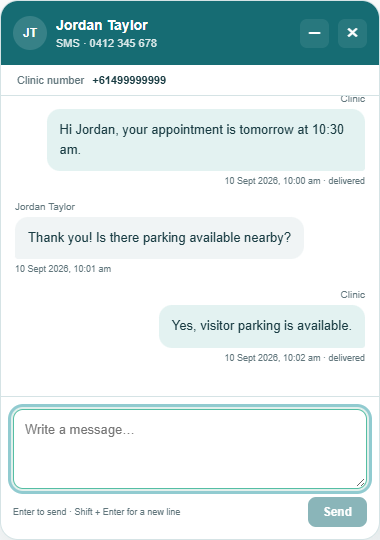
Keep supported patient messages and your team’s replies in the communication workflow.
A few practical questions
AI suggestions are editable drafts. A staff member checks the wording and chooses Send. The suggestion does not send itself.
Configure your messaging service, have enough credits and use a reply-capable sender. Optional dedicated numbers cost extra. Availability depends on your sender and provider.
No. The draft helps your team reply to a message. Confirm and make appointment changes through the booking workflow.
Try it in your own workflow
Explore bookings, notes, billing and patient communication in your own workspace.
No card required. See pricing for trial allowances and usage costs.